Free Online 3D Material Editor
Change colors, roughness and metalness, replace texture maps and preview the result on your model.
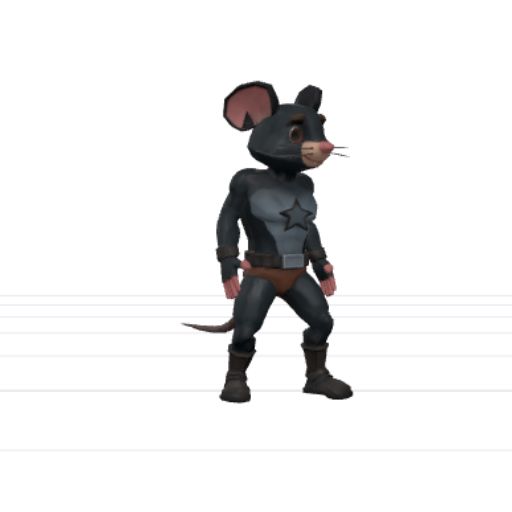
Change colors, roughness and metalness, replace texture maps and preview the result on your model.
Adjust the look of an existing 3D model: change material colors, roughness and metalness, replace texture maps, and preview the result before downloading a GLB.
How to edit your model's materials
- Open a GLB, glTF or FBX with its companion files. Include external textures and any glTF
.binfiles; a ZIP can keep them together. - Select a material and adjust the available properties. The controls depend on its material type.
- Replace a texture map with a PNG, JPEG or WebP image, or reuse a texture already in the model.
- Inspect the result from several angles, then export the edited model as GLB. Keep your original source file for later revisions.
Before you export
Check that the right image is assigned to each texture slot. Color images and data maps such as normal or roughness maps serve different purposes. You can continue to texture resizing or optimization in the same workspace without importing the model again.
Common questions
Is material editing and export free?
Editing your local files and exporting them as GLB is free, with no account required. Local editing runs in your browser. AI-generated models, server rigging and AI motions are separate services with their existing allowance and plan requirements.
Can the editor recover missing textures?
No. Supply the referenced images with the model or replace them yourself. Changing a material's color does not recreate a missing texture.
Will the exported model look identical in every engine?
Material and extension support varies between applications. Compare the exported GLB in your target engine, especially when using transparency, transmission or other advanced material properties.
Keep working
Resize model textures · Inspect a GLB · Optimize a GLB for the web