Appearance
Rig a Fox for Free: From Static Model to Animated GLB
Start with a static fox. Finish with a GLB that contains a skeleton and a walk. This demo uses Cinevva's free Guided Rigger, a CC0 Quaternius model and an authored fox animation. It runs locally in the browser without an account or a generation job.
The bundle contains the unrigged input, saved marker setup, animated result and license. The video shows the exported file playing in Blender; it is not an AI-generated preview.
What you need
- A browser with WebGL and room to inspect the model from the side and front. A larger screen makes marker placement easier.
- The static fox GLB.
- The saved fox marker setup, if you want to reproduce this example before placing your own markers.
- Optional: Blender to reopen the output independently.
The input has no skeleton or animation. The motion used later is an authored Quaternius walk, transferred onto the new rig. This tests the rigging/export workflow, not image-to-3D generation.
1. Open the free Guided Rigger
Open Guided Rigging, choose Choose model, and load fox-static.glb. Wait until the model has appeared before restoring a saved setup.
This free tool is separate from provider auto-rigging in the main workbench. No credits or paid provider call are needed for this example.
2. Place or restore the markers
For the exact example, open Fine-tune & saved setups, choose Restore setup, and load fox-walk-setup.json. The saved setup is matched to this fox; it is not a universal animal preset.
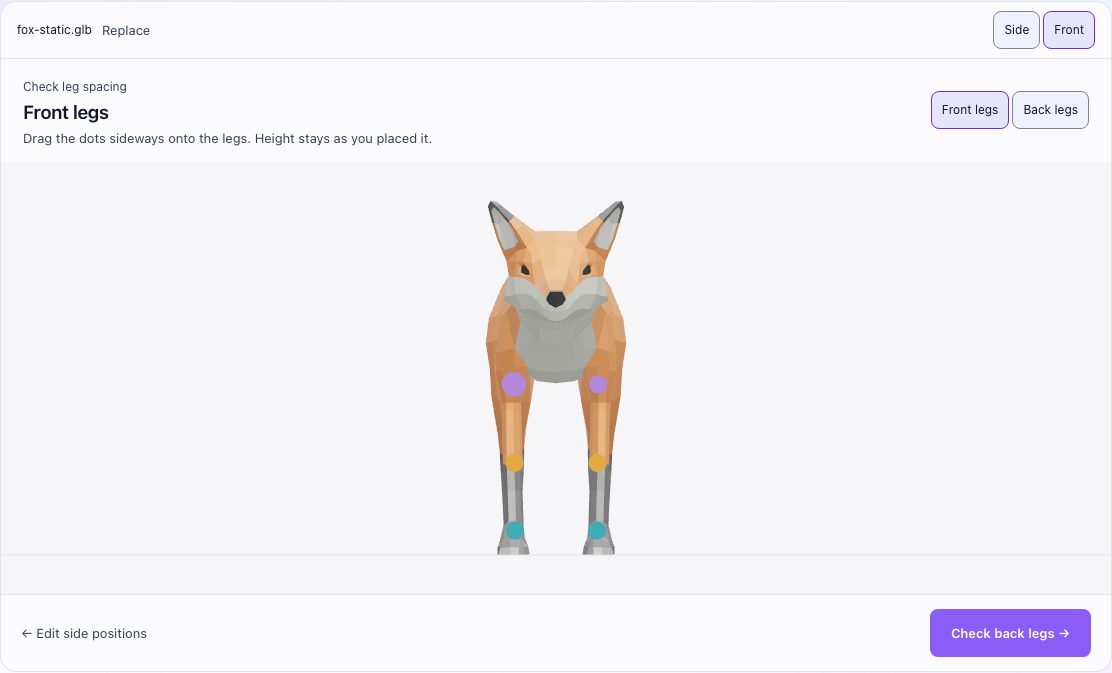
Restoring the setup opens the Front legs spacing check in Front view. Inspect the dots on the front legs, then choose Check back legs → to check the rear legs in Back view. To change the side markers, choose ← Edit side positions. Put joints at the actual bends, rather than at the tips of the fur or the edge of the silhouette.
3. Preview the walk
Choose Preview animation → and inspect Fox · Walk from both Side and Front. Look at the shoulders, hips, knees and paws. Watch for a leg pulling the opposite side of the body, a collapsed joint or feet crossing through the floor.
Only check I've checked the bends and feet from both views after you have done that review. A successful rig calculation does not replace this step.
4. Download and reopen
Choose Download GLB. Open the downloaded file in a fresh viewer, or import it into Blender with File → Import → glTF 2.0. Play the animation there and check that the entire fox moves.
Keep the original static model and marker setup so you can adjust the rig later. The result GLB is the portable output; the JSON records your guide placement.
What we verified
On November 7, 2026, this example was run through the local Guided Rigger UI and its downloaded result was independently inspected and rendered in Blender.
| Check | Result |
|---|---|
| Input | Static mesh; no skin or animation |
| Export | GLB with 1,848 triangles, 51 joints and one Fox · Walk clip |
| Dependencies | No external image or buffer files required |
| Reopening | Exported motion and mesh deformation checked in Blender |
| Compute | Local guided rigging; no provider generation |
See verification details and file hashes. This is one model and one motion. It does not establish quality for every animal, a mobile-device compatibility result, or Unity/Godot import validation.
Use your own creature next
Use this fox as a known working reference, then change one thing at a time: your mesh, marker placement, then motion. A standing, clearly separated four-legged model is a better starting point than a curled-up animal or a whole scene. Keep the source texture files with the model until you have checked the final export.
If you still need a mesh, compare AI 3D model generators and their download limits, or browse free 3D character models. For the next step, follow the animated GLB-to-Blender demo.
Source and license
The source fox and authored motion are from Quaternius's animal assets, supplied under CC0. The package includes the source license. The static demo input was prepared from that asset by removing the original rig and animation; it was not generated from an image.