Appearance
Skip to content
Arcade › AEGIS Command Deck
AEGIS Command Deck
How to play
Click the game above and it runs right here in your browser. No download, no installer, no account needed. shrihanagaraj Gorantla built it with Cinevva, so it works on a phone or a tablet too.
Discussion
Nobody has said anything about AEGIS Command Deck yet. Play it, then tell shrihanagaraj Gorantla what you would add next.
Make your own game
AEGIS Command Deck was built by shrihanagaraj Gorantla with the Cinevva game creator: describe the game you want in chat, watch it get built, and play it in your browser minutes later.
Remix AEGIS Command Deck opens the real game in the creator and forks its actual files, chat and design doc, so you start from the code rather than from a description.
Read the build brief for AEGIS Command Deck
Cinevva's analyzer read this game's design doc and its source, then wrote the brief below. "Make your own" hands it to the game creator as your opening message, so you start from a real spec rather than a one-line idea.
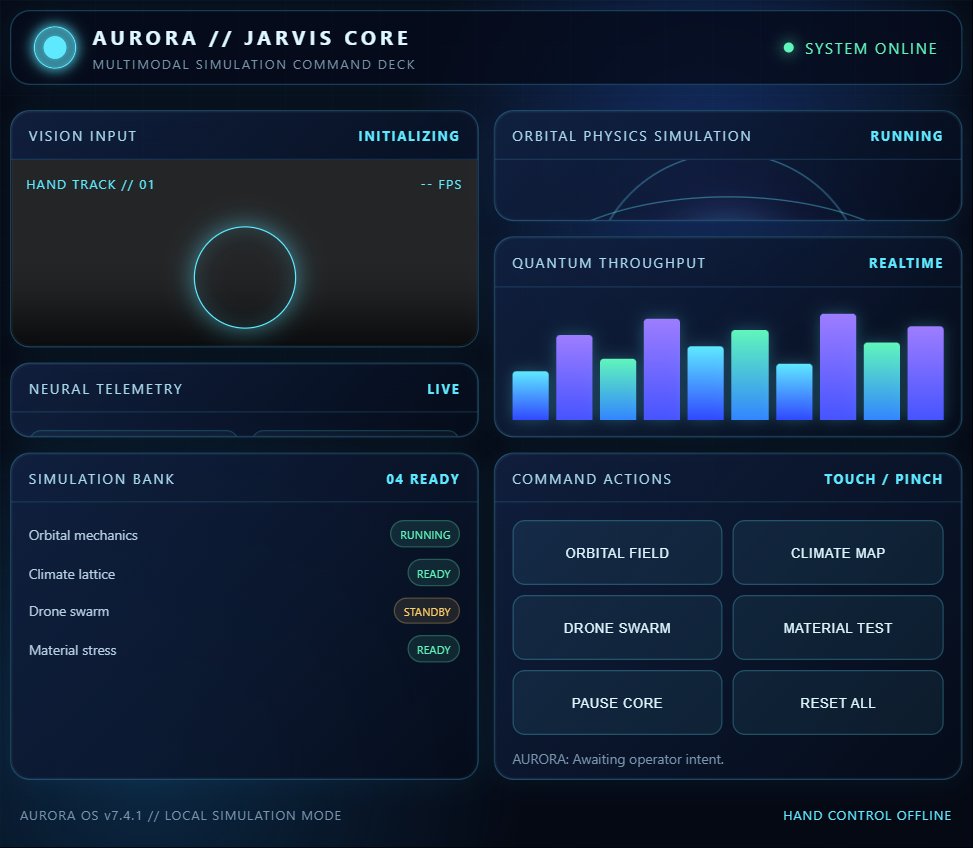
Recreate a polished browser-based command-center dashboard game titled “AEGIS Command Deck,” presented as a dark futuristic desktop AI-agent control interface rather than a traditional character game. Use a responsive two-column application layout: a full-width top status bar, a left navigation sidebar, and a scrollable main workspace. The visual style is deep navy/black glassmorphism with subtle radial blue background lighting, thin blue borders, cyan and electric-blue highlights, green status text, soft glows, rounded panels, and compact sci-fi typography with uppercase letter spacing.

Top bar: on the left show a glowing blue/cyan spherical orb logo with a white highlight, followed by “AEGIS // JARVIS-LIKE AGENT” and the subtitle “ADAPTIVE EXECUTIVE & GUIDANCE INTELLIGENCE SYSTEM.” On the right show pill-shaped status badges: green “● CORE ONLINE,” “LATENCY 12ms,” and a UTC time display. Keep the top bar fixed-looking with translucent dark background and a thin bottom border.

Left sidebar: label the section “COMMAND DECK,” then show stacked navigation buttons: “◈ Mission Control” highlighted with a blue gradient and cyan inset edge, followed by “⌁ Simulations,” “◌ Knowledge Core,” “⌘ Automations,” and “◍ System Monitor.” Below a “PERSONA” label, show “◉ Voice interface” and “☼ Ambient mode.” At the bottom, include a rounded “MISSION STATUS” panel saying “All systems nominal. Hand-control sensors are emulated through pointer gestures and sliders.” Add a horizontal blue/cyan scan/progress bar and the text “18 / 18 simulations linked.” Navigation items can be primarily visual; Ambient mode must work by applying a warmer hue/saturation visual filter to the page and toggling back.

Main workspace: begin with a hero row reading “Good evening, Commander.” and “AEGIS is ready to orchestrate your command deck, simulations, and voice workflows.” Include two buttons on the right: a secondary “🔊 Speak status” button and a bright primary “▶ Run all simulations” button. Speak status should append a system-status message and use browser speech synthesis when available.

The main content is a two-column responsive layout. The larger left panel is titled “TACTICAL SIMULATION MATRIX,” with subtitle “Pointer-controlled live modules // click, drag, tune,” and a counter initially reading “18 ACTIVE.” Inside, render 18 compact simulation cards in a 3-column grid on wide screens, 2 columns at medium widths, and 1–2 columns on small screens. Each card has a title, a short subtitle, a small category pill, a live animated visual, a range slider from 0 to 100, and a green percentage value. Use exactly these modules and descriptions/categories: Orbital Dynamics — “Trajectory and gravity field” — ORBIT; Fusion Reactor — “Plasma containment balance” — ENERGY; Drone Swarm — “Formation intelligence routing” — SWARM; Quantum Tunnel — “Probability state collapse” — QUANTUM; Cyber Shield — “Threat detection lattice” — SECURITY; Hologram Studio — “Volumetric projection control” — VISUAL; Weather Engine — “Atmospheric pattern modeling” — CLIMATE; Robotic Arm — “Precision motion planning” — ROBOTICS; Nanobot Field — “Microscopic repair swarm” — MEDICAL; Exosuit Sync — “Human-machine response loop” — AUGMENT; Satellite Mesh — “Global relay optimization” — ORBIT; Traffic Grid — “Autonomous city routing” — CIVIC; Neural Lab — “Cognitive signal mapping” — RESEARCH; Ocean Current — “Deep-water energy harvest” — OCEAN; Energy Grid — “Load balancing forecast” — POWER; Terraforming — “Biosphere atmosphere mix” — PLANET; AGI Sandbox — “Agent behavior simulation” — COGNITION; Time Lens — “Causal sequence visualizer” — TEMPORAL.

Give cards dark inset backgrounds and cyan border accents on hover. Alternate their small visuals by index: animated scan/wave lines, five glowing blue gradient bar columns with subtly breathing heights, or a rotating cyan ring. The initial slider values should be generated in this sequence from the formula 52 + (index * 13 modulo 42), yielding a varied set of percentages. Dragging a slider updates that card’s percentage and recalculates reasoning load as approximately 54 plus the average module value multiplied by 0.28; update active threads to 32 plus half the load, and vary displayed latency between 8 and 16ms. Clicking anywhere on a card except its slider should increase that module’s value by 5, update the slider/value, append a conversational message such as “Tuned Orbital Dynamics to 57%,” and speak the tuning message with a low, calm browser voice if speech synthesis exists.

The narrower right column contains two panels. First, a “COGNITIVE CORE” panel with subtitle “Priority routing and agent health” and a green “STABLE” label. Show a large animated circular AI visualization: concentric/radial rings and a rotating cyan-to-blue-to-violet conic glow, with a dark center labeled “AI.” Beside it list metrics: “Reasoning load” initially 68%, “Memory lattice” 94.2 TB, “Sensor fusion” 99.8%, and “Active threads” initially 42. The reasoning load and active threads should update from slider and simulation activity; when not running, gently ease the load back toward 58 over time.

Below it, create a “CONVERSATIONAL CHANNEL” panel with subtitle “Type or use the microphone command” and a “TEXT READY” state indicator. Start the chat log with two AI messages: “Good evening. I am AEGIS. Ask me to run a simulation, tune the reactor, scan the network, or summarize system health.” and a second hint containing “Try: ‘run orbital simulation’ or ‘speak system status’.” Style AI messages as blue inset bubbles and user messages as right-aligned darker violet/blue bubbles. Add a command input with placeholder “Command AEGIS...”, a microphone button, and a bright “Send” button. Pressing Enter should send the command.

Implement command parsing for typed text and microphone transcripts. If the command includes “run all” or “run every,” start the full matrix and answer “All 18 simulations are now running in parallel.” If it includes “status” or “health,” answer with a status summary containing the current reasoning load, “sensor fusion 99.8 percent,” and “18 simulations linked.” If it names a simulation by its first word, increase that module by 12, sync its slider, and respond that the simulation is engaged and its control envelope increased. If it includes “speak,” respond “Voice interface is online. All systems are nominal.” Otherwise use the acknowledgement “Command acknowledged. I can tune any simulation, summarize health, or run the full matrix.” Append both user and AI messages and use speech synthesis for AI replies where supported.

The “Run all simulations” button must toggle to “◼ Stop matrix” and change the counter to “18 RUNNING.” While active, repeatedly update every module by a small random amount, clamped between 18 and 100, re-render the cards, and fluctuate reasoning load between roughly 60 and 88; after about 26 animation frames stop automatically, restore the button text “▶ Run all simulations,” restore “18 ACTIVE,” and append “Matrix pass complete. No critical anomalies detected.” Clicking while active stops the matrix. Use smooth animated visuals and subtle hover lift/glow effects, but do not add combat, characters, inventory, external networking, or features not represented by this dashboard.

At the bottom of the main area show the small footer “AEGIS sandbox // no external systems connected” and “Hand controls: drag sliders  click modules  voice,” with keyboard-style rounded labels. Support responsive behavior: hide the sidebar on narrow mobile layouts, stack the hero controls, collapse the main layout into one column, and keep the dashboard vertically scrollable. Use browser SpeechSynthesis for spoken status/tuning/command responses and Web Speech Recognition when available for the microphone; when recognition is unavailable, append a message explaining that voice recognition is unavailable while text-to-speech is ready. Maintain a clean, functional single-page dashboard with all interaction driven by the sliders, module clicks, command input, microphone, status button, run-all button, and ambient-mode toggle.